Universal Video Speed
Keyboard shortcuts for controlling video playback speed on YouTube and Bilibili.
About
Universal Video Speed is a video speed control extension for YouTube and Bilibili that lets you change playback with single-key shortcuts. It is built for people who want faster keyboard control instead of hunting through player menus, and it also supports creator-specific defaults, smart video selection on pages with multiple players, and a badge that shows the active speed.
What is Universal Video Speed
Universal Video Speed is a Chrome extension that adds keyboard-driven speed control for online video playback. It focuses on YouTube and Bilibili, where it can change the active video's rate with simple single-key shortcuts instead of on-screen menus. The extension is listed as version 0.1.2 and is offered by pipizhu in the Chrome Web Store.
The core idea is straightforward: press a shortcut, and the player speed changes immediately. The extension also keeps the current speed visible through the toolbar badge, so you can confirm the active rate without opening extra panels. For users who watch the same creators often, it can remember a preferred speed per YouTube channel or Bilibili creator.
Key features
- Default keyboard shortcuts: preset keys map to common speeds:
1for 1×5for 1.5×7for 1.75×2for 2×3for 3×
- Custom shortcut mapping: you can replace the defaults with any supported single-key shortcut and assign playback rates from 0.25× up to 16×.
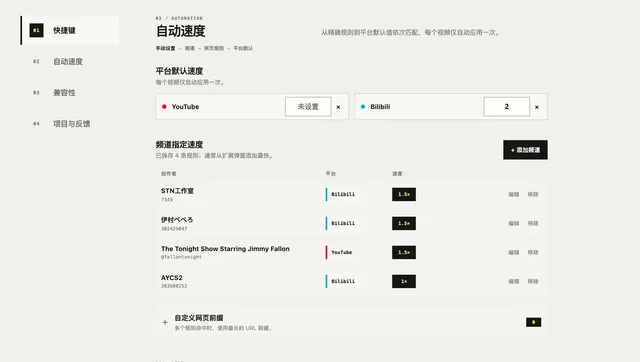
- Creator-specific defaults: save a preferred speed for individual YouTube channels or Bilibili creators, then apply it automatically when you return.
- Smart video selection: when a page has multiple videos, the extension weighs playback state, visibility, size, recent progress, and mute state to guess which one you are actually watching.
- Toolbar status badge: the badge shows the current playback speed for the active video at a glance.
- Input-safe shortcuts: shortcuts are ignored while you type, compose text, or hold modifier keys, which helps avoid clashes with normal page entry fields.
- Privacy-first design: the publisher says there is no advertising, analytics, or tracking, and that it does not sell or share personal data.
How to use it
- Install the extension from the Chrome Web Store and add it to Chrome.
- Open a supported video page on YouTube or Bilibili.
- Press one of the default single-key shortcuts to switch playback speed.
- If you want a different mapping, open the extension settings and assign your own shortcut-speed pairs.
- On a creator's video page, open the popup to detect the current creator and add or remove a creator default speed.
- Use the settings page to review or manage all saved creator rules.
Because the extension is keyboard-first, it is most useful when you want fast changes during long videos, lectures, commentary, or rewatching clips at a steady pace. The popup and settings pages provide the structure for customizing behavior beyond the presets.
Who it is for
Universal Video Speed is aimed at people who watch a lot of web video and want quicker control than standard player buttons provide. It fits well if you:
- use YouTube or Bilibili regularly
- switch speeds often while learning, skimming, or revisiting content
- prefer keyboard shortcuts over mouse clicks
- want different default speeds for different channels or creators
- watch pages where more than one video may appear and want the extension to pick the most likely active player
It is also a practical fit for viewers who like a consistent speed workflow across channels, since creator rules can reduce repetitive adjustment.
What to know before you use it
Universal Video Speed is not a general video-tool suite; the available source material only confirms support for YouTube and Bilibili. It does not claim broad compatibility with every streaming site, so if you need controls on other platforms, confirm support before relying on it.
The extension stores shortcuts and creator rules with Chrome Sync, so your preferences can follow your browser profile. The publisher states that network access is limited to YouTube and Bilibili pages needed for playback control and creator-name resolution. That means the extension should be used where those site permissions make sense, not as an offline player controller.
The available listing does not mention captions, frame stepping, playlist management, download features, or hotkey customization beyond single-key speed shortcuts. It also does not provide evidence of a standalone mobile app or a desktop app.
The Chrome Web Store listing shows 0 ratings at the time of the source capture, so there is little public feedback to judge edge cases. For exact site behavior, current permissions, or policy details, the Chrome Web Store listing and the extension's privacy information are the most reliable references. Universal Video Speed is best used as a focused Chrome speed controller, especially when you need simple keyboard playback shortcuts on supported video pages.
FAQ
Is Universal Video Speed free?
Yes, the Chrome Web Store listing does not show a paid plan or subscription. The source material only indicates a free extension listing, with no pricing tiers disclosed.
Is Universal Video Speed free to use?
Yes, the Chrome Web Store listing does not show a price. It is presented as a free browser extension, but no paid tier is mentioned in the source material.
Which platforms does it work on?
It is built for Chrome and is described for YouTube and Bilibili. The extension listing does not claim support for other browsers or video sites.
Which platforms does it support?
It supports Chrome as an extension and is documented for YouTube and Bilibili playback control. The available information does not confirm support for other browsers, mobile apps, or desktop apps.
How do the speed shortcuts work?
You press a single key to jump to a preset speed such as 1×, 1.5×, 1.75×, 2×, or 3×. The extension also lets you replace those defaults with supported single-key shortcuts and choose speeds from 0.25× to 16×.
Can I change the default hotkeys?
Yes, you can replace the default keys with supported single-key shortcuts. You can also set speeds anywhere from 0.25× to 16×.
Can I change the shortcut keys?
Yes, you can replace the default single-key shortcuts with other supported keys. The extension also lets you assign playback speeds from 0.25× to 16×.
How do the keyboard shortcuts work?
The extension maps single keys to playback rates such as 1×, 1.5×, 1.75×, 2×, and 3× by default. You can also replace those defaults with other supported single-key shortcuts and assign speeds from 0.25× to 16×.
Can I set different speeds for different creators?
Yes, you can save creator-specific default speeds for individual YouTube channels or Bilibili creators. The popup on a video page can detect the current creator, and the settings page lets you manage all rules.
Does it remember my preferred speed for specific creators?
Yes, it can save creator defaults for individual YouTube channels or Bilibili creators. You can manage those rules from the popup or the settings page.
Does it remember per-channel speed settings?
Yes, it can save creator defaults for individual YouTube channels or Bilibili creators. Those rules are managed in the popup or the settings page and sync through Chrome Sync.
Can it remember a speed for specific creators?
Yes, it can save a preferred speed for individual YouTube channels or Bilibili creators. You can detect the current creator from the popup on a video page and then add or remove that rule.
Who is this extension best for?
It is best for viewers who want quick keyboard control over playback speed on YouTube or Bilibili. That includes learners, heavy video watchers, and keyboard-first users.
Will the shortcuts interfere when I type on a page?
No, the shortcuts are ignored while you type, compose text, or hold modifier keys. That helps prevent accidental speed changes in text fields.
Does it interfere with typing in forms or comments?
No, the shortcut system is designed to stay out of the way while you type or compose text. It also ignores shortcuts when modifier keys are held, which helps prevent accidental triggers.