
Image3D AI
An all-in-one AI 3D platform for image to 3D conversion, STL export, textures, avatars, and model format conversion.
About
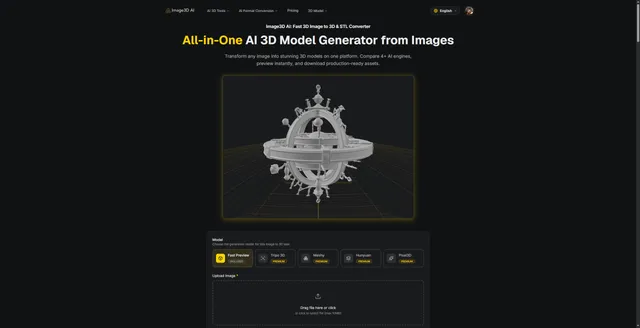
Image3D AI is an AI 3D model generator built for fast image to 3D and STL conversion. It lets you upload an image, compare several AI engines, preview the result in-browser, and download 3D assets in formats such as STL, OBJ, and GLB. The app also highlights free sample images, no-login testing, and multiple texture quality options, making it easy to try image to 3D workflows before you commit to a full generation run.
What is Image3D AI
Image3D AI is an AI 3D model generator that focuses on image to 3D conversion and related file workflows. The site presents itself as an all-in-one AI 3D platform for turning images into 3D models, with support for STL conversion and exports such as OBJ and GLB. It also advertises textures, avatars, and 3D file conversion, so the app is more than a single-purpose image to 3D tool.
The product emphasizes speed and comparison. Instead of relying on one engine, Image3D AI lets you choose from multiple AI models for the same image to 3D task, including Hunyuan 3D, Tripo, Meshy, and Pixal3D. The page also mentions fast preview and downloadable assets, which positions the app as a practical AI 3D model generator for creators who need to test ideas quickly.
Key features
Image3D AI combines several image to 3D functions in one interface:
- Multiple AI engines: The page says you can compare 4+ AI engines for image to 3D generation.
- Common 3D formats: Export support includes STL, OBJ, and GLB models.
- Free examples: The site offers sample images that can be tested without login and without credit cost.
- In-browser preview: A 3D viewer loads automatically so you can inspect the model before downloading.
- Upload limits: Image uploads support PNG, JPEG, and WEBP, with a stated max file size of 10 MB.
- Texture quality choices: The interface shows Standard and Extreme texture quality options.
- Prompt-free workflow: This is an image to 3D generator, so the core input is an image rather than a text prompt.
Image3D AI is also positioned for different visual use cases. The site shows examples for character images and concept art, suggesting the AI 3D model generator is meant for stylized characters, mascots, props, and hard-surface reference art.
How to use it
Using Image3D AI follows a simple image to 3D flow:
- Upload or select an image. You can drag and drop a file or click to choose one.
- Use a supported format. PNG, JPEG, and WEBP are accepted, and the file size limit is 10 MB.
- Pick a generation model. The interface lets you choose an engine such as Tripo, Meshy, Hunyuan, or Pixal3D for the image to 3D task.
- Choose texture quality. Select Standard or Extreme depending on how detailed you want the output to be.
- Generate the 3D model. The page notes that login status affects generation cost, and the free samples can be tested with no credit cost.
- Review the preview. The model viewer loads automatically, so you can inspect the generated 3D model in the browser.
- Download or continue conversion. The site describes downloadable 3D assets and format conversion, including STL, OBJ, and GLB workflows.
If you only want to test the image to 3D experience, the example images are the fastest starting point because they do not require a login.
Who it is for
Image3D AI is aimed at people who need an image to 3D model generator without setting up a complex pipeline. The product is a fit for:
- 3D printing enthusiasts who want image to STL conversion for prototypes or concept objects.
- Designers who need a quick AI 3D model generator for reference art, product ideas, or visual mockups.
- Makers and hobbyists testing how a 2D image might become a usable 3D asset.
- Creators working with characters or mascots who want a clear visual identity translated into 3D.
- Artists and concept designers who need rapid image to 3D iteration for vehicles, props, or hard-surface assets.
The app is especially relevant if you care about trying multiple engines in one place instead of manually switching tools. That makes Image3D AI useful for comparing image to 3D quality across different generation models.
What to know before you use it
Image3D AI is useful, but there are important limits to keep in mind. The platform says that clear outlines and simple backgrounds produce the best results, so complicated images may not convert as cleanly in an image to 3D workflow. It also does not claim to replace manual 3D modeling for every case, especially when topology, rigging, or game-ready cleanup is critical.
A few practical caveats:
- Results will vary by engine. The app compares multiple AI models, so output quality may differ between Tripo, Meshy, Hunyuan, and Pixal3D.
- It is not a guaranteed STL fix tool. If you need precise engineering dimensions or print-critical accuracy, verify the mesh in a dedicated 3D tool before production.
- Free testing is limited. The site highlights free sample images and no credit cost for examples, but login status can affect generation cost.
- The upload cap is fixed at 10 MB. Larger source images will need to be resized or compressed first.
- Official files still matter. For manufacturing, legal, or archival use, treat the generated model as a starting point and confirm against your original source assets and production requirements.
In short, Image3D AI is a fast image to 3D and AI 3D model generator for exploration, previews, and conversion. Use it to test ideas quickly, then validate the result before relying on it for final delivery.
FAQ
How much does Image3D AI cost?
Image3D AI operates on a freemium credit system. You can test with free example images without login, but generating your own models consumes credits starting at 4 credits per task. Premium textures and higher resolutions may cost more. Credit packs are available for purchase.
Is Image3D AI free to try?
Yes, it offers free sample images with no credit cost and no login required. The site also shows that login status can affect generation cost for other runs.
What 3D file formats does Image3D AI support?
You can download generated models in STL, OBJ, and GLB formats, which are widely used for 3D printing, game engines, and AR/VR applications.
What file formats does Image3D AI support for uploads?
It supports PNG, JPEG, and WEBP uploads. The stated file size limit is 10 MB, so larger images need to be reduced before upload.
Can I compare results from different AI engines?
Yes, Image3D AI lets you choose from four engines—Tripo, Meshy, Hunyuan, and Pixal3D—and preview each output instantly, so you can pick the best result for your project.
Can Image3D AI export 3D printable files?
Yes, it supports image to STL conversion. It also mentions OBJ and GLB output, which makes it useful for both printing and general 3D workflows.
Is Image3D AI suitable for 3D printing?
Absolutely. The generated models come in standard formats like STL, ready for slicing and printing. Many users are 3D printing enthusiasts.
Who should use Image3D AI?
It is best for designers, makers, 3D printing enthusiasts, and artists who want a quick image to 3D model generator. It is especially handy for characters, concept art, props, and reference-driven assets.
Do I need to create an account to use Image3D AI?
No account or login is required to test the free example images. To generate your own models, you'll need to log in to manage credits.
Do I need to know how to model in 3D first?
No, you can start with a single image and generate a model in the browser. That said, you may still need a separate 3D tool for cleanup, retopology, or print-ready refinement.