
Image to Video AI
Turn photos into HD AI videos with motion prompts and multiple model options.
About
Image to Video AI is an AI image to video tool that turns a single photo into a short cinematic clip online. You upload a JPG, PNG, or WEBP image, describe the motion you want, and generate smooth HD video without editing software. The app is built for creators, marketers, and businesses that need fast visual content for social media, ads, and product showcases.
What is Image to Video AI
Image to Video AI is an AI image to video tool that converts a still photo into a short animated clip in the browser. It is designed around a simple workflow: choose an AI video model, upload a reference image, describe the motion, and generate a video preview. The site positions the app as a way to create cinematic, realistic, or stylized results from a single image, with no editing skills required.
The product focuses on quick output for online content rather than manual timeline editing. It highlights HD quality, support for multiple AI video models, and commercial use rights for the videos you generate. In the product’s own examples, the app is aimed at social media, ads, and product visuals, which makes it a practical AI image to video tool for people who need polished motion content fast.
Key features
Image to Video AI includes several features that make the AI image to video workflow straightforward:
- Image upload from common formats: The app accepts JPG, PNG, and WEBP reference images.
- Motion prompt input: You describe the movement you want, and the system uses that text to drive the animation.
- Multiple AI video models: The interface mentions different models, including an auto mode that can select a model for you.
- HD export options: Output is shown as 720p, 1080p, and up to 4K on the site.
- Commercial use: Generated videos are described as safe for business and client work.
- Fast browser-based workflow: The site markets the process as taking minutes rather than requiring a complex editor.
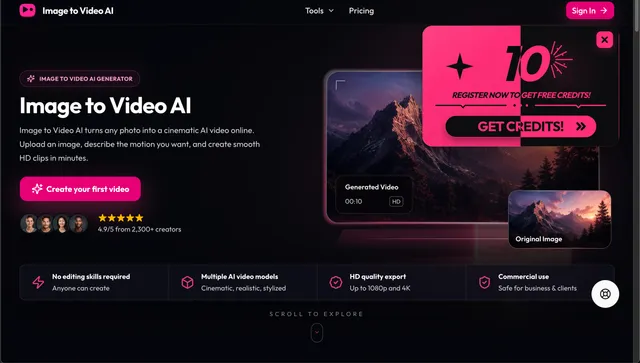
The landing page also shows a preview area for the generated clip, so the app is set up as an image to video generator with an immediate before-and-after style result. The page mentions a 4.9/5 rating from 2,300+ creators, which suggests the product is already being used by a sizable creator audience.
How to use it
Using this AI image to video tool follows a short sequence:
- Select a video model if you want to control the style or leave the app in auto mode.
- Upload a source image in JPG, PNG, or WEBP format.
- Write a motion description that explains how the photo should move or animate.
- Generate the clip and wait for the preview to appear in the results area.
- Review the output and export a version that fits your platform or campaign.
The site suggests starting with a high-quality source photo, because better inputs lead to more realistic movement. That matters for an image to video generator: a sharp image gives the model more detail to work with, especially when you want cinematic motion or product-focused visuals.
Who it is for
This AI image to video tool is a strong fit for people who need motion content without a full post-production workflow.
- Social media creators who want short clips from still photos.
- Advertisers and marketers who need fast visual variations for campaigns.
- Product teams and sellers who want animated product presentation assets.
- Freelancers and agencies that need client-ready videos with commercial rights.
- Non-editors who want an image to video result without learning video software.
Because the interface is simple, the app works best when the goal is a clean, prompt-guided clip rather than advanced editing. If you already have a strong photo and a clear motion idea, the image to video process can save a lot of production time.
What to know before you use it
There are a few practical limits to keep in mind with this AI image to video tool. First, the result depends heavily on the quality of the uploaded image and the clarity of the motion prompt. If the source photo is blurry, cramped, or poorly lit, the animated output may look less realistic.
Second, the site does not describe a full editor with multi-layer trimming, keyframes, or manual compositing, so it should not be treated like a professional NLE. It is an AI image to video generator, not a replacement for advanced video editing software.
Third, the app mentions multiple AI models and an auto mode, but it does not explain the model names, training data, or exact rendering rules on the public page. If you need fully predictable branding or compliance review, test the output carefully before client delivery.
Fourth, even though the site says generated videos are available for commercial use, you should still verify the license terms on the current pricing or policy pages before using outputs in regulated, high-stakes, or rights-sensitive campaigns. For trademark, legal, or editorial work, use official source material or human review where accuracy matters most.
For most users, the value is speed: upload a photo, describe motion, and get an AI image to video result that is ready for social, ad, or product use. If that is your goal, the app is built to get you from still image to shareable video with minimal friction.
FAQ
Is Image to Video AI free to use?
The official site does not publicly list pricing; you may need to create an account to view plans. The 'Create your first video' prompt suggests a free trial or initial free generation, but ongoing use likely requires a paid subscription.
What does Image to Video AI do?
It turns a still image into a short AI-generated video. You upload a JPG, PNG, or WEBP file, describe the motion, and generate an HD clip in the browser.
What video resolutions does Image to Video AI support?
You can export videos in 720p, 1080p, and 4K resolution, all with smooth frame rates suitable for professional use.
Is Image to Video AI free?
The pricing is not clearly stated in the source material. The public page shows a pricing link, but it does not provide enough detail here to confirm free or paid tiers.
Can I use the generated videos for commercial projects?
Yes, all videos created with Image to Video AI come with a commercial license, allowing you to use them in marketing, advertising, social media, and client work without restrictions.
What file types can I upload?
It accepts JPG, PNG, and WEBP images. The site also recommends using a high-quality image for more realistic motion.
Do I need any editing skills to use this tool?
No editing skills are required. The AI automates animation, transitions, and effects based on your uploaded image and motion description.
Can I use the generated videos commercially?
The site says commercial use is allowed. You should still check the current terms before using outputs in client work or regulated campaigns.
Who is Image to Video AI best for?
It is best for creators, marketers, and businesses that need quick motion clips from photos. It is especially useful when you want social, ad, or product content without manual editing.